Is your laptop making a clicking noise, has an external hard drive stopped opening, or have important files suddenly disappeared? A failing storage device can put your photos, documents and business files at risk. The most important thing is to avoid actions that could make the damage worse.
Data recovery is not the same as ordinary computer repair. If a drive is physically failing, every extra attempt to start it, scan it or copy files may reduce the chance of recovering your data. This guide explains what to do first and when to seek professional help.
What Does a Clicking Hard Drive Mean?
A traditional mechanical hard disk drive (HDD) contains moving parts, including spinning platters and read/write heads. Repeated clicking, ticking or scraping sounds can indicate that the drive is struggling to operate or that an internal component has failed.
A single click does not automatically mean the drive is beyond recovery. However, repeated clicking combined with slow access, freezing, error messages or a drive that disappears from Windows should be treated as a warning sign.
Common signs of a failing hard drive
- Repeated clicking, ticking, grinding or unusual mechanical noises.
- The laptop freezes when opening folders or copying files.
- The hard drive is missing from File Explorer or Disk Management.
- Windows displays messages such as “Drive is not accessible” or asks to format the disk.
- Files become corrupted, disappear or take an unusually long time to open.
- The computer repeatedly fails to boot or displays a SMART warning.
Important: If you hear repeated mechanical clicking from an HDD, shut the computer down and stop using the drive. Do not keep restarting it to see whether it works again.
What Should You Do Immediately?
- Stop using the affected device. If the drive is clicking or making unusual noises, shut the computer down normally if possible. If it is already off, leave it off.
- Do not save anything to the affected drive. New files, software installations and system activity can overwrite data that might otherwise be recoverable.
- Disconnect external drives safely where possible. If an external HDD is clicking, disconnect it and do not reconnect it repeatedly for testing.
- Record the symptoms. Note when the problem started, any error messages, unusual sounds and whether the drive was dropped or exposed to liquid.
- Seek advice before running repair utilities. A technician can help determine whether the issue is logical, electronic or mechanical before recovery is attempted.
If the drive contains important or irreplaceable files, prioritise data recovery over getting the computer running again.
What NOT to Do When a Hard Drive Fails
1. Do not keep turning it on and off
Repeated power cycles can place further stress on a mechanically damaged drive. If the drive is making a repeated clicking or grinding noise, stop testing it.
2. Do not tap, shake or freeze the hard drive
Hitting or shaking a drive can cause additional physical damage. The commonly repeated “put it in the freezer” trick is not a safe recovery method. Condensation and temperature changes can create further problems.
3. Do not run CHKDSK or repair tools on a physically failing drive
Utilities such as CHKDSK are designed to address file-system issues, not mechanical failure. They may make extensive reads and writes to the disk. If the drive is physically unstable, get advice before running scans, repairs or recovery software.
4. Do not initialise or format a drive that contains needed files
If Windows asks you to initialise or format a disk, do not accept the prompt if you need the existing data. Formatting or writing new information can complicate recovery.
HDD vs SSD: Are the Recovery Methods Different?
Yes. A hard disk drive (HDD) stores information on magnetic platters and has mechanical components. A solid-state drive (SSD) stores data in flash memory and has no spinning platters or moving read/write heads.
- HDD failure: Clicking or grinding may indicate mechanical trouble. A physically damaged HDD may require specialist equipment and work in a controlled environment.
- SSD failure: An SSD may suddenly become undetectable, switch to read-only mode or stop responding. It usually will not make mechanical clicking noises.
- External drive failure: The problem may be the drive itself, its USB connector, cable, enclosure or power supply. Diagnosis is needed before assuming the data is lost.
Some SSDs use encryption or controller-specific technology, which can affect recovery options. The exact model and failure type matter, so there is no single recovery method that works for every drive.
How Does Professional Data Recovery Work?
A recovery specialist will first assess the storage device and symptoms to determine whether the problem is related to the file system, electronics, firmware or physical components. The safest approach depends on the condition of the device.
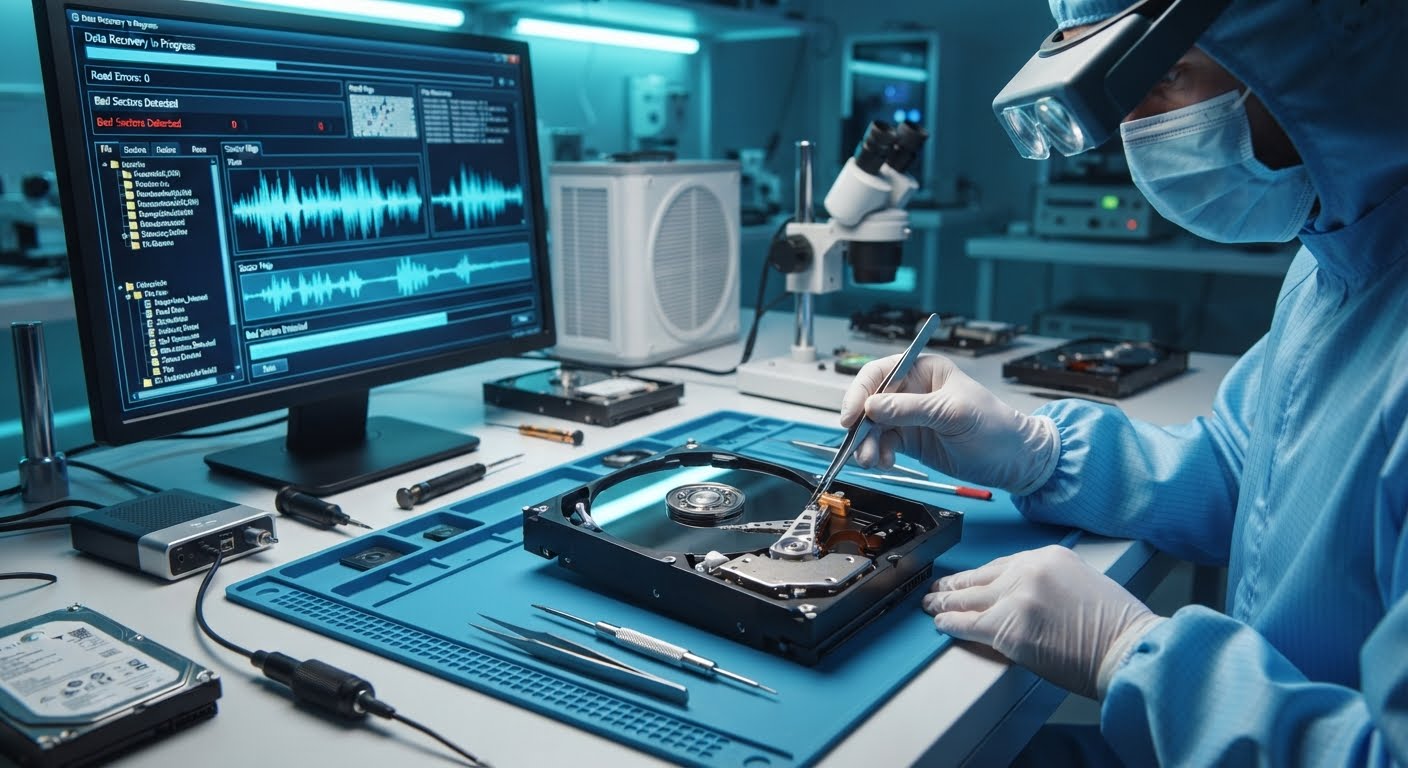
Where a drive is stable enough, a sector-by-sector image may be created and recovery work performed on that copy rather than repeatedly working on the original. A mechanically damaged HDD may need specialist cleanroom procedures. Not every fault can be recovered, and the outcome depends on the type and extent of damage.
What information should you provide?
- Hard drive or laptop make and model, if known.
- Whether the device is an HDD or SSD.
- The symptoms and any noises or error messages.
- Whether the device has been dropped, exposed to liquid or previously opened.
- Which files are important and whether you have another backup.
Do not open a sealed hard drive yourself. Dust or contamination can damage the internal platters and heads.
Frequently Asked Questions
Can files be recovered from a clicking hard drive?
Sometimes. The possibility depends on the cause and severity of the mechanical damage. Stop powering the drive on and have it assessed. Recovery cannot be guaranteed.
Can I recover data from a hard drive that is not detected?
Possibly. The cause may be a faulty cable, enclosure, connector, controller or the drive itself. Avoid initialising or formatting it, and have the cause diagnosed first.
Can deleted files be recovered from an SSD?
It depends on the SSD, its operating system, encryption and whether TRIM has processed the deleted data. Stop using the device as soon as possible because continued use may reduce recovery options.
Should I run data recovery software?
Only if the drive is stable and you understand the risks. Do not run recovery software on a clicking or physically failing HDD. If the data is important, seek professional advice first.
Is a clicking laptop hard drive always dead?
Not necessarily, but repeated clicking is a serious warning sign. Shut the laptop down and avoid further testing until the drive has been assessed.
Can data be recovered from a damaged external hard drive?
In some cases. The fault may be in the enclosure or USB connection, or it may be an internal drive failure. The device should be checked before attempting repeated connections or repairs.
Need Help With a Failed Hard Drive or Lost Files?
Jim Computer Expert provides computer support across Melbourne's eastern and south-eastern suburbs. If your laptop, desktop or external hard drive is not recognising files, we can discuss the symptoms and help identify an appropriate next step.
For drives making repeated clicking or grinding noises, stop using the device before seeking assistance. Specialist recovery may be required for physically damaged drives, and recovery results cannot be guaranteed.
Important data? Avoid experimenting with the drive before it has been assessed.
Jim Computer Expert
Mobile computer support across Melbourne East and South East.
Phone:
0450 723 839
Email:
info@jimcomputer.com.au