OLD COMPUTER UPGRADE SOLUTION PRICING

Why pay more to get a new computer? let us upgrade your up to 10 years old computer to a super faster computer. The price includes 120G SSD (SSD is 10x faster than a traditional hard drive for higher performance). 240G SSD plus $30, 480G SSD plus $70.

Solution A Refresh your computer

from $150

  1. install SSD in your Computer
  2. Reload your current or newer OS to SSD
  3. Reinstall Program or Transfer your data plus $45

Solution B Keep everything

from $195

  1. Clean up unnecessary system files.
  2. Clone HDD to SSD
  3. Install SSD in your Computer
  4. Disable or remove unwanted startup programs
  5. Keep your system free of viruses and malware
  6. tune up your computer system
  7. If you want to Upgrade to newer OS.plus $30.

Speeding up an old computer

requires a mix of hardware upgrades, software optimizations, and maintenance. Here’s a step-by-step guide to breathe new life into your aging PC:

  1. Hardware Upgrades (Most Effective)
    • Upgrade to an SSD – Replacing a traditional HDD with an SSD is the single biggest speed boost for an old computer.
    • Add More RAM** – If your PC has less than 8GB (or 4GB for very old systems), upgrading RAM helps with multitasking.
    • Clean Internal Dust – Overheating slows down performance; clean fans and heatsinks
    • Replace Thermal Paste – If the CPU runs hot, reapplying thermal paste can improve cooling.
    • Upgrade the CPU (if possible) – Some older desktops allow CPU swaps for a faster model.

  2. Software Optimizations
    • Reinstall the OS – A fresh install of Windows/Linux removes bloat and resets performance.
    • Switch to a Lightweight OS– Try Linux (Lubuntu, Xubuntu, Linux Mint) or Windows 10/11 Lite versions.
    • Disable Startup Programs(Windows:Task Manager >Startup| Mac: System Preferences > Users& Groups > Login Items
    • Uninstall Unnecessary Software – Remove bloatware and old programs you don’t use.
    • Reduce Visual Effects(Windows:System Properties >Performance Options> Adjust for best performance

  3. Storage Cleanup
    • Delete Temp Files(Windows: Disk Cleanup| Mac:OnyX.
    • Switch to a Lightweight OS– Try Linux (Lubuntu, Xubuntu, Linux Mint) or Windows 10/11 Lite versions.
    • Disable Startup Programs(Windows:Task Manager >Startup| Mac:System Preferences >Users & Groups > Login Items
    • Uninstall Unnecessary Software– Remove bloatware and old programs you don’t use.
    • Reduce Visual Effects(Windows: System Properties >Performance Options>Adjust for best performance

  4. Advanced Tweaks
    • Disable Background Apps(Windows: Settings > Privacy > Background Apps)
    • Adjust Power Settings– Set to High Performance mode (Windows: Power Options).
    • Scan for Malware– Use Malwarebytes or Windows Defender to remove slowdowns from infections.
    • Disable Unnecessary Services (Windows: `msconfig > Services– hide Microsoft services first).

0450723839

info@jimcomputer.com.au

What is SSD?

About SSD

Hard drive replacement

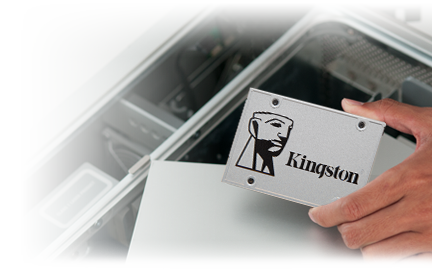
Solid-state drives are the next evolution of PC storage and run faster, quieter and cooler than the aging technology inside hard drives. With no moving parts, SSDs are also more durable and more reliable than hard drives.

For desktops and notebooks

solid-state drives will make your system more responsive so it boots quicker, loads applications faster and shuts down faster. They’re available in upgrade kits that include software to clone your files and OS in minutes.

Revive older systems

Solid-state drives will not only increase performance but can also be used to breathe new life into older systems. Choosing an SSD can save you the cost of buying a new PC by reviving the system you already own.
ssd

Client Reviews

Graham Gallop

A new SSD made a major difference to the operational speed of the HD in an old Toshiba lap top which was at its max. Of 4GB RAM. Price very reasonable compared to other service providers. Will use Jim for other problems that occur. I am 85 and struggle to understand computer technicalities

video from Youtube