Is your desktop or laptop taking forever to start, opening programs slowly or freezing when you have several tasks running? Before spending money on a new computer, it is worth checking whether an SSD upgrade could solve the problem. For many older computers, replacing a traditional hard drive with a solid-state drive (SSD) can make a noticeable difference.
However, an SSD is not a cure for every performance problem. The best option depends on your computer's age, processor, memory, condition and the way you use it. This guide explains when an upgrade is worthwhile and when buying a new PC makes more sense.
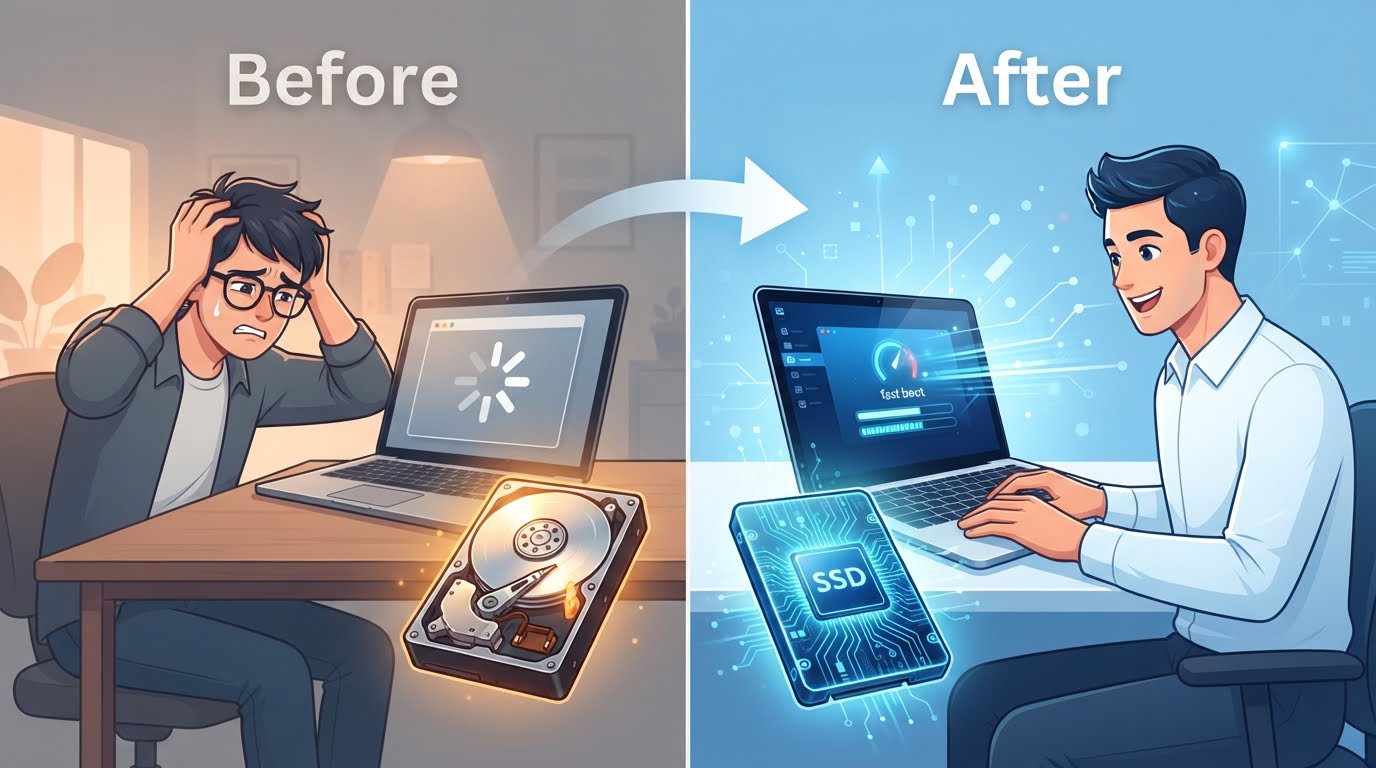
1. Why Is Your Computer Running Slowly?
A slow computer does not automatically mean that it is too old. Performance can be affected by several different issues, and identifying the cause first can help you avoid paying for an upgrade you do not need.
- Traditional hard drive (HDD): Older mechanical drives are much slower than modern SSDs, especially when starting Windows or loading applications.
- Not enough RAM: If memory is full, Windows may rely more heavily on storage, making the computer feel sluggish.
- Too many startup programs: Unnecessary applications running in the background can slow down startup and everyday use.
- Software problems: Malware, corrupted Windows files, outdated drivers or other software issues can affect performance.
- Ageing or failing hardware: A failing drive, overheating processor or other hardware fault may cause slowdowns, freezing or unexpected shutdowns.
If your computer has become slow suddenly, keeps freezing or makes unusual clicking noises, have it checked before attempting major upgrades. A failing hard drive should be assessed promptly, especially if it contains important files.
2. How an SSD Can Improve Computer Performance
An SSD (solid-state drive) stores data using flash memory and has no moving mechanical parts. A traditional HDD uses spinning platters and a moving read/write head. Because an SSD can access data much faster, replacing an old HDD is often one of the most effective upgrades for an otherwise suitable computer.
After moving Windows and your programs to an SSD, you may notice:
- Faster Windows startup and shutdown.
- Programs opening more quickly.
- Less waiting when opening files and folders.
- Improved responsiveness during everyday tasks.
- Less noise and vibration compared with a mechanical hard drive.
The improvement is usually most noticeable when replacing an HDD. If your computer already has an SSD, changing to a faster SSD may produce a smaller difference in normal everyday use. An SSD also will not turn an entry-level processor into a high-performance gaming CPU.
3. When Is an SSD Upgrade Worth It?
An SSD upgrade is often a sensible option when your computer is generally reliable but still uses a traditional hard drive. It may be particularly worthwhile if the processor and memory are adequate for your normal work.
An SSD upgrade may be suitable if:
- Your desktop or laptop is slow mainly when starting Windows or opening programs.
- The computer has a healthy, compatible processor and enough RAM for your tasks.
- You are happy with its screen, keyboard, ports and other features.
- You mainly use it for web browsing, email, office applications, study or general home use.
- The cost of the upgrade is substantially lower than replacing the whole computer.
Before buying an SSD, check compatibility. Some computers use a 2.5-inch SATA drive, while others support an M.2 SATA or M.2 NVMe SSD. Not every M.2 slot supports every type of drive, and some older systems have capacity or interface limitations.
Your existing Windows installation and personal files may be transferred by cloning the old drive, where appropriate, or Windows can be installed afresh. Important data should always be backed up before work begins.
4. When Should You Buy a New Computer?
Sometimes an SSD alone will not make enough difference. If several major components are outdated, replacing the computer may offer better value and a longer useful life.
Consider a new PC or laptop if:
- The processor is too slow for the applications you need to run.
- The computer has very limited RAM and cannot be upgraded economically.
- It does not support an operating system or software that you need to use securely.
- The motherboard, screen, battery or other major components also need repair.
- You need modern features, better graphics performance, more connectivity or improved battery life.
- The combined cost of repairs and upgrades is approaching the cost of a suitable replacement.
For example, an older laptop with a slow processor, limited memory, a worn battery and a damaged screen may not be a good investment even if an SSD can improve its startup time.
5. Should You Upgrade the RAM as Well?
RAM and storage do different jobs. RAM is the short-term working memory used by Windows and running applications. An SSD stores Windows, programs and files even when the computer is switched off.
If your computer frequently slows down when many browser tabs or applications are open, additional RAM may help, provided the system supports it. An SSD upgrade will not solve a memory shortage on its own.
Before upgrading, check the maximum supported memory, the number of available slots and the correct memory type. Some laptops have memory soldered to the motherboard and cannot be upgraded.
6. SSD Upgrade vs Buying a New PC: How to Decide
There is no single answer for every computer. Compare the total upgrade cost with the price of a replacement that genuinely meets your needs.
| Consideration | SSD Upgrade | New Computer |
|---|---|---|
| Best suited to | A reliable computer that still uses an HDD | A computer with several outdated or faulty components |
| Performance improvement | Often significant when replacing an HDD | Can improve overall performance across CPU, RAM and storage |
| Cost | Usually lower if no other major repairs are needed | Higher initial cost |
| Other benefits | Can extend the useful life of existing equipment | Newer hardware, features and warranty |
| Limitations | Does not upgrade the processor or graphics | Files, applications and settings may need to be transferred |
Ask for a diagnosis and a clear quote before deciding. The right recommendation should take into account the computer's condition and your actual requirements, not simply its age.
7. Frequently Asked Questions
Will an SSD make my old computer faster?
If the computer currently uses a traditional hard drive, an SSD can make startup, application loading and general responsiveness noticeably faster. The result still depends on the processor, RAM and overall condition of the computer.
Is it worth putting an SSD in a 10-year-old laptop?
It can be worthwhile if the laptop is in good condition, has a suitable processor and supports the operating system and applications you need. Check compatibility and the cost of any other required repairs first.
Will an SSD fix a computer that freezes?
Not necessarily. Freezing can be caused by a failing drive, faulty RAM, overheating, drivers, Windows problems or other hardware faults. Diagnose the cause before replacing parts.
Should I replace my HDD with an SSD or add more RAM?
That depends on the bottleneck. An HDD-to-SSD replacement often improves startup and loading times, while additional RAM may help when memory is running out during multitasking. Some computers benefit from both.
Can my files and Windows be transferred to the new SSD?
In many cases, the existing drive can be cloned to a compatible SSD. A fresh Windows installation is another option. The best method depends on the condition of the old drive and the existing Windows installation. Always keep a separate backup of important files.
How do I know which SSD is compatible with my computer?
Check the computer's model and specifications to identify the supported drive type, physical size and interface. A SATA SSD and an NVMe SSD are not interchangeable in every computer.
Is Your Computer Running Slowly?
Before spending money on a new desktop or laptop, let Jim Computer Expert assess whether an SSD upgrade, RAM upgrade, software repair or replacement computer is the better option.
We provide mobile computer and laptop support across Melbourne East and South East, including advice on storage upgrades, Windows issues and general computer performance.
Jim Computer Expert
Mobile computer and laptop repair services across Melbourne East and South East.
Phone:
0450 723 839
Email:
info@jimcomputer.com.au